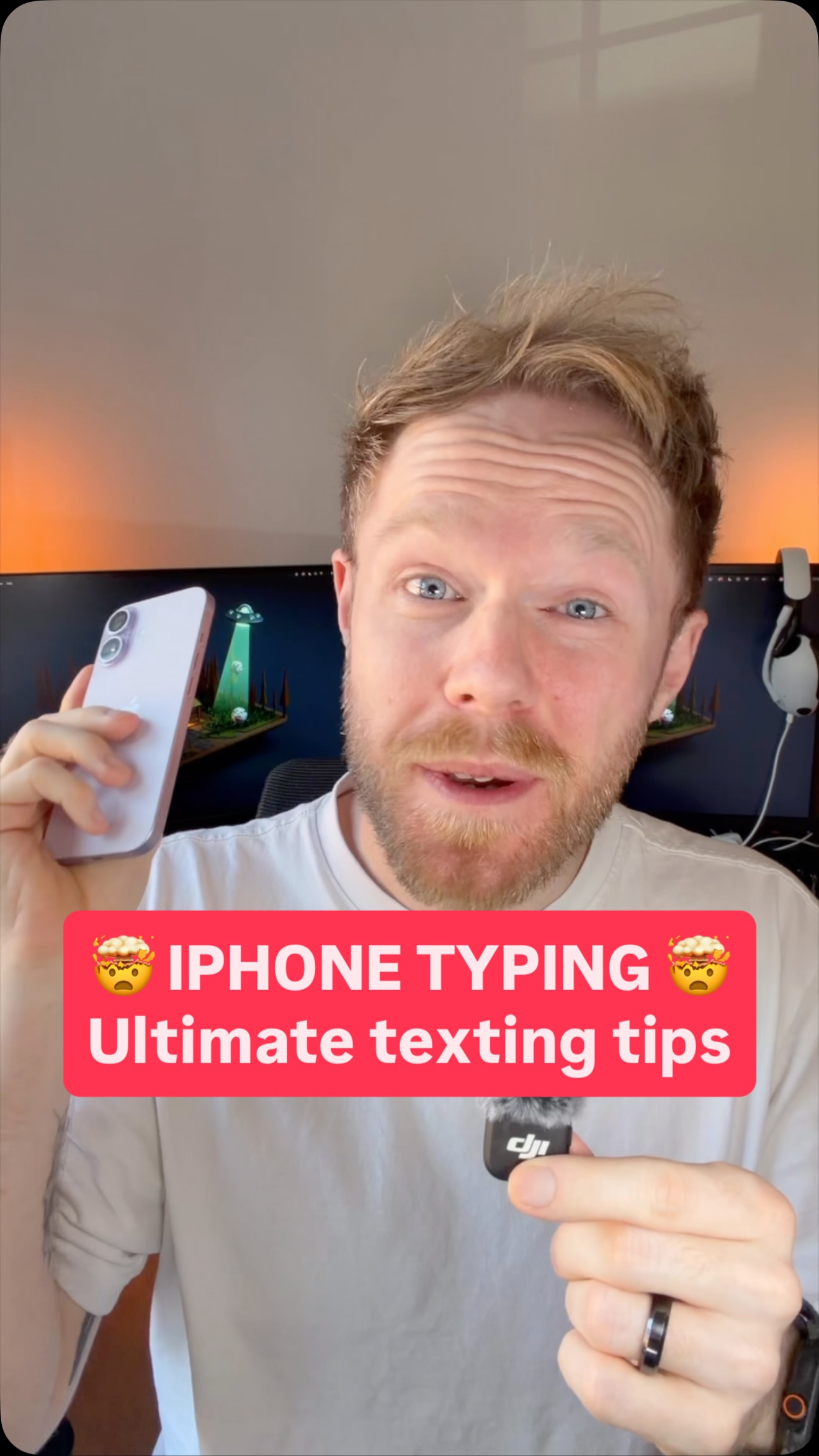
I am going to blow your iPhone typing MIND here 🤯 not one, not two, but FIVE…
Search inside any video
SavedThat transcribes your saved videos and lets you search across all of them instantly. Save this video and find any moment.
TL;DR
Learn five mind-blowing iPhone typing tricks to enhance your text selection, copying, and pasting experience.
Chapters
- 0:00Introduction to iPhone Typing Tricks01
- 0:10Highlighting Text with the Spacebar02
- 0:25Selecting and Deselecting Text03
- 0:40Copying and Pasting Text Easily04
- 0:55Dragging Photos Between Apps05
- 1:05Conclusion and Comments06
Transcript
when you hold the spacebar down on an iPhone to move the cursor? Well, I'm gonna blow your mind. If you do that and then tap the trackpad with your thumb and then drag the cursor, it'll highlight the text. But that's not very good because when you highlight the text, you can't then go backwards and deselect the text. So here's an even better option you've almost definitely missed.
Type out your text and then hold down on the shift button with your left thumb. Now hold down on the spacebar with your other hand and move it left and right. Yep, this will not only let you select the text but also deselect the text when you go backwards. But wait, there's more.
If you want to copy and paste the text, you don't have to hit copy and paste. Just drag it and pick it up with your finger so it's floating. Then use your other finger to swipe that app closed. Move around, go to another app, all while keeping the text floating. And then when you're ready to paste it, just drop the text in with your finger and it'll paste it.
And if you didn't realize, this also works with photos. You can drag a picture from photos and then close the app and drop it somewhere else, like into a message. How many of these did you know? Let me know in the comments.
How many of these did you know? Let me know in the comments.
Are you the creator or rights holder of this video? Request removal of this transcript.
Related Transcripts
 0:37Instagram
Comment "APPLE" and I'll send you the skill.
Jack Roberts
 0:55Instagram
This is the UI Tracking Effect!
Declann Drostan Tan | Content Creator
 0:38Instagram
IPhone can I be fully controlled by Claude code using the skill or a library.
Lukasz Wieczorek
 0:45Instagram
AI can do screen replacements for you 🔥 Comment “AI” for my prompts GPT-6…
Rourke Sefton-Minns
 1:09Instagram
In this mini series I’m doing, I’ll be going over some useful tips on how to…
Gus | Building A Meal Plan App
 1:49Instagram
We're gonna hit this plus sign in the bottom right.
Zach | Content Expert
Never lose a moment again
Save videos from YouTube, Instagram, and TikTok. Search everything that was said, and jump to the second.
Start Saving Videos - Free Trial